- Online Auto Key Supplier

motorcycle keys
Worldwide shipping
OEM REMOTES

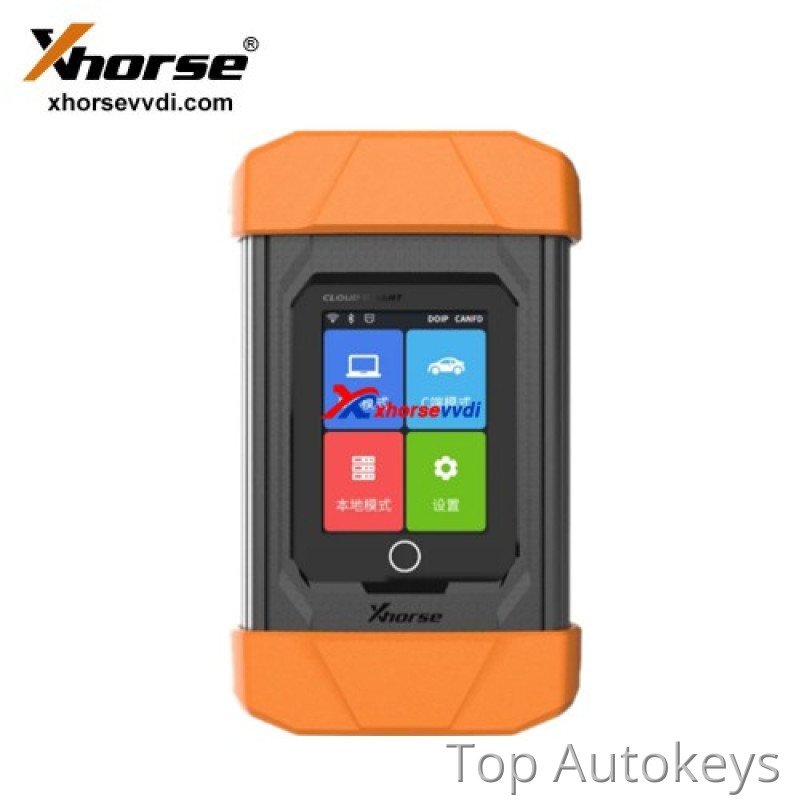
Due to high network requirement of Cloud diagnosis services, recommended network sequence is as follows:
Wired network ( recommended ) > WIFI > mobile hotspot (not recommend for programming).
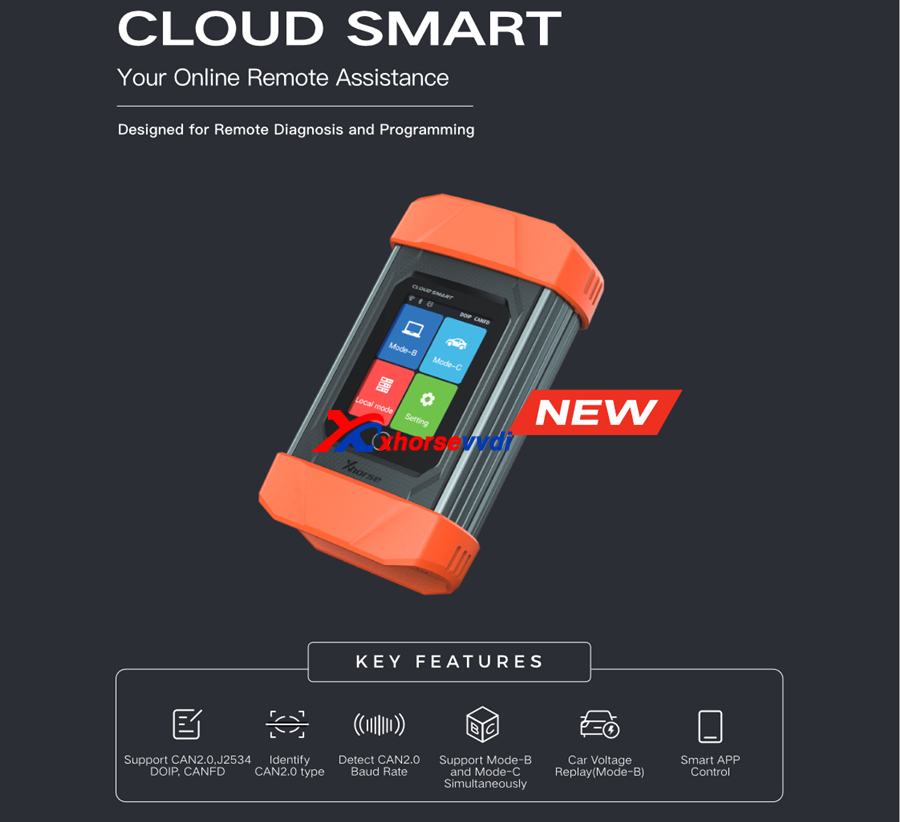
Cloud Smart Key Features:
Support CAN2.0, J2534 DOIP. CANFD
Identify CAN2.0 type
Detect CAN2.0 Baud Rate
Support Mode-B and Mode-C Simultaneously
Car Voltage Replay(Mode-B)
Smart APP Control
Xhorse VVDI Cloud Smart Function:
Support adaptive OBD II pin (Baud rate, impedance)
Support automotive communication protocols such as CAN 2.0, DoIP, CAN FD, and K-line communication.
Support low-speed CAN, high-speed CAN, DOIP and single-line CAN, CAN FD
Support Mode-B and Mode-C simultaneously
Support simultaneous working of three high- speed CAN protocols
Support local J2534
Support remote diagnosis and local diagnosis

What is a Remote Diagnostic Device?
Remote diagnostic devices fall into two categories:
Mode-B
Mode-C
Remote diagnostic devices are usually split into two types: remote service devices (Mode-B) and remote repair devices (Mode-C).
Traditionally, these devices were limited to a single function. But the Xhorse Cloud Smart combines both modes, allowing you to seamlessly switch between them. By integrating IoT and cloud technology, we’ ve created a platform that offers both maintenance and diagnostic services for automotive customers.
What is the Function of Xhorse Cloud Smart?
Function 1: Remote Diagnostics
Large auto repair shops use it in Mode-B, while smaller shops or key programming shops use it in Mode-C.

Function 2: Local Mode (Supports J2534 Protocol)
Perfect for diagnostics with original manufacturer software.

How to Connect the Mode-B and Mode-C?
Mode-C Users :
Post tasks on the XHORSE APP with a unique ID
Connect your device to the vehicle and share the ID
Mode-B Users :
Browse the Demand Square for open tasks
Enter the ID to link with Mode-C and resolve issues remotely
How Cloud Smart Works: A Case Study
Let’s look at how Xhorse Cloud Smart handles a common problem: BMW FEM coding loss.In this case, we use the BMW FEM module as a simulation unit, yet it can still be connected to the car’s OBD interface for real vehicle diagnostics.

Step 1: Connect Devices
Mode-C: Link KEYTOOL PLUS to the BMW FEM module → Generate ID
Mode-B: Connect Cloud Smart, BIMTOOL PRO and Computer→ Enter ID to sync
Step 2: Calculating Programming Files
In the BIMTOOL PRO software, navigate to “Vehicle programming” and select “40-FEM” to calculate the programming file.
Step 3: Programming
After calculation, click “Programming” to apply the new coding. The process will update the vehicle’ s firmware and restore its key learning.
Step 4: Key Learning and DTC Reset
After programming, clear the vehicle’s DTCs and perform key learning. This will restore the coding and key data.
Work with Key Tool Plus



Reviews
There are no reviews yet.